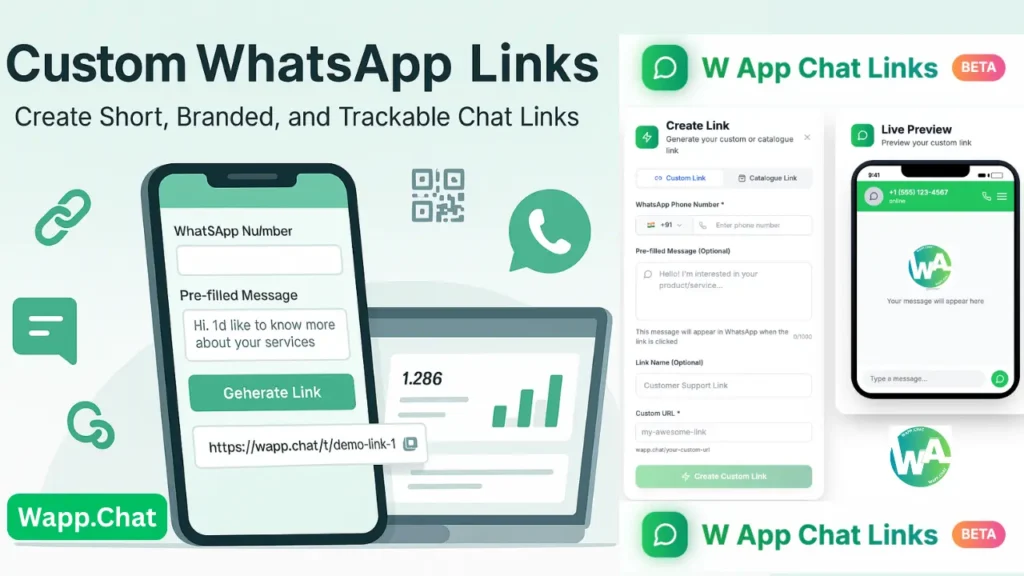
When a customer wants to contact you on WhatsApp, they usually need your number or a long default link like wa.me/1234567890. That looks unprofessional and is hard to remember.
WAppChat solves this with a smart feature called Custom WhatsApp Links, where you can create short, branded, and trackable links for your chats.
You can think of it as your digital contact link that opens your WhatsApp chat with a pre-filled message. It's clean, professional, and easy to share anywhere you want.
What Is a Custom WhatsApp Link #
A Custom WhatsApp Link is a personalized chat link created inside WAppChat. Instead of using a plain wa.me link, you create a short and brand-friendly link like this: https://wapp.chat/t/demo-link-1
When someone clicks it, the link directly opens a chat with your WhatsApp number and automatically fills in a message that you choose.
You can use this link in your website, social profiles, digital ads, or even inside other WAppChat features like Form Links and Multilink Pages.
Who Should Use This Feature #
Custom WhatsApp Links are made for anyone who communicates with customers, students, or followers through WhatsApp.
Here are some people and businesses that can use it every day:
- Small business owners who want a branded chat link for their website or online store
- Freelancers and agencies who need custom pre-filled messages for different services
- Customer support teams who use different chat numbers for billing or complaints
- Teachers or institutes collecting queries or admissions through WhatsApp
- Restaurants and cafés that want quick booking or feedback chats
- Marketers running campaigns who want to track clicks and chat conversions
Basically, if you get customer messages through WhatsApp, this tool makes it ten times easier to manage and track them.
Why You Should Use Custom Links #
Using a short custom link is not just about looks. It saves time, builds trust, and gives you analytics that basic wa.me links cannot.
- You can set a clear message like Hi, I'd like to know more about your product so customers don't have to type anything.
- You can track how many people clicked your link, where they came from, and what device they used.
- You can create different links for different campaigns or departments.
- You can generate a QR code instantly for print materials or product packaging.
- You can manage all links from one dashboard and edit them anytime.
How to Create a Custom WhatsApp Link in WAppChat #
Let's go step by step to create your first custom link.

Step 1: Go to the WhatsApp Links Section #
Open your WAppChat dashboard and click on WhatsApp Links from the left menu. You'll see a list of all your links, their types, clicks, and created dates. To create a new one, click the Create Link button on the top right.
Step 2: Fill in the Basic Details #
Once you click Create Link, a setup form will appear on the left side. Here's what you need to enter:
- WhatsApp Number: Type your business number including country code.
- Pre-filled Message: Write the text that will appear automatically when the chat opens. For example: Hi, I want to know more about your services.
- Link Name: Give your link a short and clear title such as Product Support or Demo Chat.
- Custom URL: Add your custom slug such as demo-link-1. If the name is already taken, change it slightly.
Step 3: Preview the Link #
You can see a live preview of how the chat will look on mobile. It shows your WhatsApp number and your pre-filled message in real time. This makes it easy to check if everything looks right before saving.
Step 4: Save and Generate Your Link #
Once all details are entered, click Update Custom Link. WAppChat will generate your new URL instantly. The system will show your custom link like this: https://wapp.chat/t/demo-link-1
You'll also see a QR code that customers can scan to open WhatsApp directly.
Step 5: Copy or Share the Link #
After your link is created, you can copy it or share it right away. WAppChat also lets you test it instantly by clicking Test to see if it opens correctly. You can download the QR code in high quality for printing on banners, receipts, or posters.
All your created links appear in the list with columns for clicks, contacts, and creation dates, so you can manage them easily anytime.
How Custom Links Work With Other WAppChat Features #
Custom links don't just work alone. You can connect them with other WAppChat tools for more automation and better organization.
Use Inside Form Links #
You can add your custom WhatsApp link as the chat destination for a Form Link. That means when someone fills your form, their data is sent directly to the WhatsApp number connected with that custom link. This helps your team identify which form the chat came from and reply faster.
Use Inside Multilink Pages #
When you create a Multilink Page, you can insert your custom links there too.
For example, you can create separate buttons like "Talk to Support," "Sales Inquiry," or "Feedback" and each using a different custom WhatsApp link. Customers can pick which department to contact without confusion.
Use for Marketing Campaigns #
You can create separate links for each ad campaign or channel. One link for Instagram, one for Facebook, and one for your website. Then you can track which source brings more chats through analytics.
Use for Agents #
If your team includes multiple agents, you can make different custom links for each person. Each link connects to a different number or pre-filled message, helping route customers to the right contact automatically.
Real Examples of Custom Link Use #
- A bakery shares https://wapp.chat/t/order-cake for online orders.
- A real estate agent uses https://wapp.chat/t/schedule-visit to book property visits.
- A service company adds https://wapp.chat/t/tech-support on its website for support tickets.
- A freelancer adds https://wapp.chat/t/project-quote in their bio for project discussions.
Each link creates a faster connection between the customer and the business.
How Custom Links Save Time and Cost #
When you use Custom Links, you stop wasting time typing replies or sharing long WhatsApp URLs. You can create unlimited links for different campaigns or contacts and track them all from one dashboard.
You don't need to buy third-party link tools or analytics add-ons. Every feature is already included in WAppChat. That means you manage links, WhatsApp QR codes, and analytics under one roof, saving both time and monthly costs.
Tips for Using Custom Links Effectively #
- Use short and easy-to-remember link names.
- Keep your pre-filled messages friendly and clear.
- Test your link before sharing it publicly.
- Print your QR code on packaging, flyers, or menus.
- Use analytics regularly to see which links get more clicks.
- Combine Custom Links with Form Links or Multilink Pages for better workflow.
Why Custom Links Are a Must for Modern Businesses #
WhatsApp is the fastest way for customers to reach you, but managing it manually wastes energy. With Custom Links, you organize your communication and make it measurable. You can track campaigns, assign agents, and give customers a smoother chat experience.
The best part is how easily these links fit into the entire WAppChat system. You can use them in forms, multilinks, catalogs, or directly in ads. They make WhatsApp feel like a complete customer communication tool, not just a messaging app.
Checklist #
- Go to WhatsApp Links
- Click Create Link
- Add your WhatsApp number
- Write a pre-filled message
- Set your custom link name
- Save and copy your link
- Share or download the QR code
Final Thought #
Every customer prefers an easy way to chat. When you use Custom WhatsApp Links in WAppChat, you give them exactly that. It takes a few seconds to create but saves hours in daily communication. It keeps your WhatsApp clean, organized, and ready for business growth.
Written by
Sourabha Kumar Sahu
Founder of WAppChat, building tools that help businesses grow with WhatsApp.