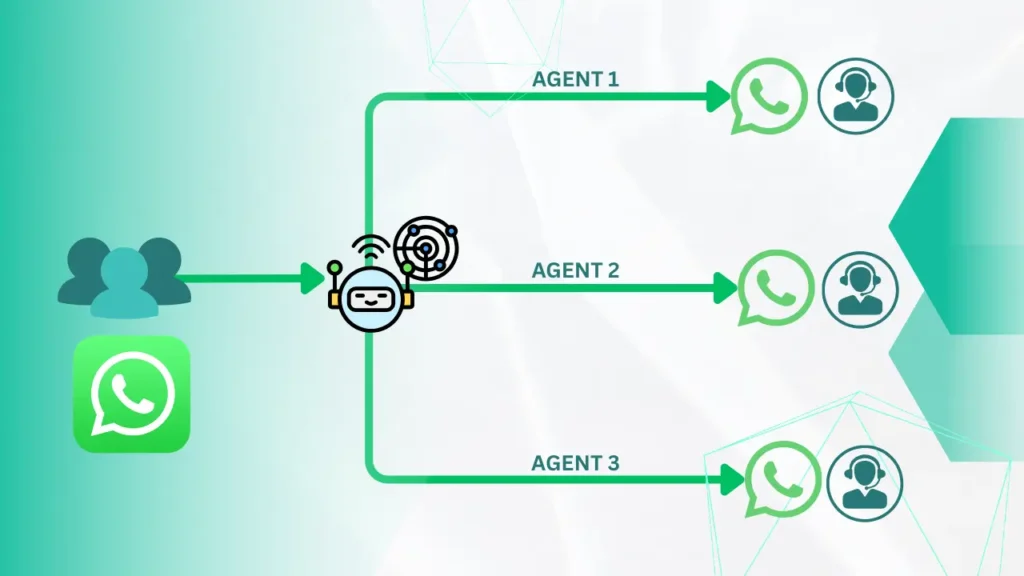
Handling a large number of WhatsApp chats can feel messy when everything goes to one number. Sometimes customers wait too long because one person gets all the load, while other team members sit free. WAppChat has solved this with the Multiagent feature. You can now distribute chats across different team members in a smart way. This feature makes sure every customer gets connected to an available agent quickly, without confusion.
I once saw a small e-commerce business in Cuttack struggle with customer queries. They had one WhatsApp number for support. Customers had to wait hours because only one person replied. After moving to Multiagent in WAppChat, queries were divided among three agents. Customers got faster replies, and the business looked more professional.
What is the Multiagent System? #
The Multiagent system in WAppChat Pro lets you create agent groups and distribute chats automatically among them. It works using intelligent assignment, balancing load, checking availability, and making sure distribution is fair. Customers don't need to know which agent they are contacting, the system handles everything in the background.
Also Read: WhatsApp Group Marketing in 2025: Do's and Don'ts You Can't Miss
Key Features Explained #
Here's a table that covers the important features with real-world examples:
Creating a Multiagent Group – Step by Step #
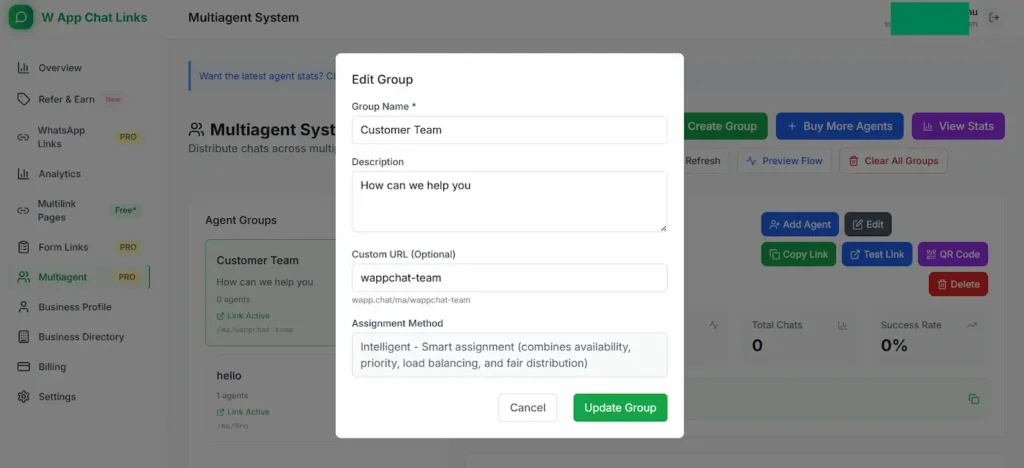
You can try this first and see how smooth it feels:
- Login to Dashboard
- Enter a Group Name like "Customer Support Team" and add description like "Handles queries and orders."
- Add custom URL like
[wapp.chat/customer-support](https://wapp.chat)so customers feel trust. - By default, Intelligent assignment is used. It checks availability, load, and priority to distribute chats.
Now, add the agent to the group:
- Enter Agent Name and Phone Number.
- Set Priority (1–10) if some agents should get chats first.
- Add Max Daily Chats to prevent overload.
- Define Start and End Time with timezone.
- Select Expertise like Sales, Support, General.
Once saved, the system is ready to distribute chats. Check assignments, success rate, average response, and top performers in the stats section.
Example Use Case #
Imagine a company selling electronics online:
- They create a group called Customer Support.
- They add Agent 1 (Sales) with working hours from 10 AM–6 PM, max 40 chats/day.
- They add Agent 2 (Tech Support) with working hours from 2 PM–10 PM, max 30 chats/day.
Now, when a customer sends a query, WAppChat automatically assigns it to the right available agent based on load and expertise.
Agent Options in Detail #
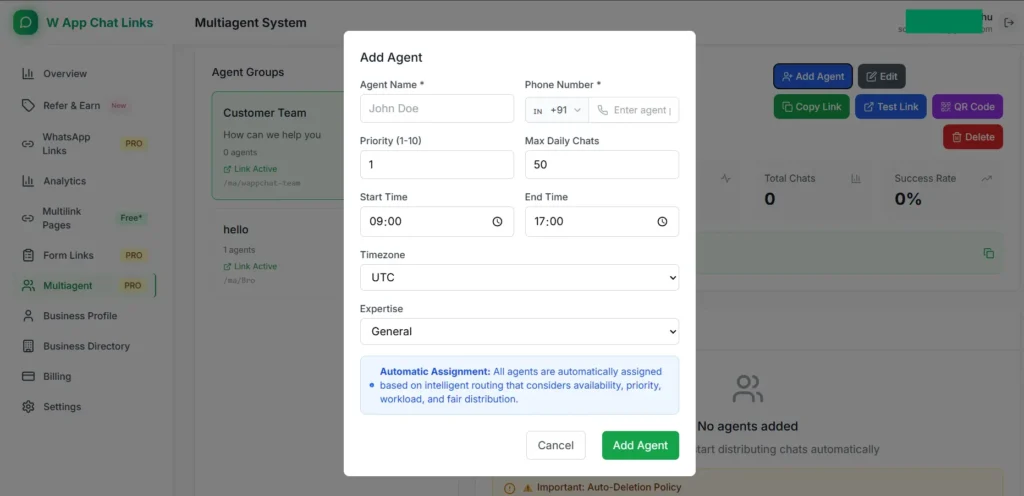
- Priority (1–10): Lower number means higher priority. Priority 1 agent gets first preference.
- Max Daily Chats: Prevents agent from being overloaded. If one agent crosses limit, chats move to others.
- Working Hours: You can set different start and end times for each agent.
- Timezone Support: Useful for international teams.
- Expertise: Helps you assign agents based on skill set.
Analytics Features #
When chats start, you can track performance:
- Number of chats given to agents.
- How many chats completed successfully.
- Highlights agents with best response and success.
Real Life Use Cases #
- Support team split into Pre-sales, Orders, and Returns. Chats go directly to correct group.
- Admissions, Fee Section, and Transport each handle their own chats.
- Queries distributed to design, development, and marketing teams.
- Separate agents for Reception, Doctor Consultation, and Billing. Patients get faster replies.
Pro Benefits #
- Add agents you bougth
- Intelligent routing saves time.
- Analytics to track team performance.
- Fair load balancing keeps agents happy.
Things You Should Keep in Mind #
- Don't add fake numbers, it may confuse customers.
- Keep working hours updated.
- Assign expertise properly for better routing.
- Track analytics regularly.
One small mistake many people make is giving all agents same priority. Be careful at this step, because then the system cannot balance well.
FAQs #
How many agents can I add in Pro plan? #
It depends on how many agents you buy
Can I assign chats manually? #
No, it is auto assignment only.
Can I remove or edit agents later? #
Yes, you can update anytime.
Do customers see which agent they get? #
No, they just see contact form and get connected.
Can I track agent performance? #
Yes, through analytics dashboard.
Conclusion #
At the end of the day, Multiagent makes your team more productive. You can connect customers with right people quickly. This works for shops, schools, startups, and agencies. Once you set it, you don't need to worry about unfair load. That's how it works.
Written by
Sourabha Kumar Sahu
Founder of WAppChat, building tools that help businesses grow with WhatsApp.