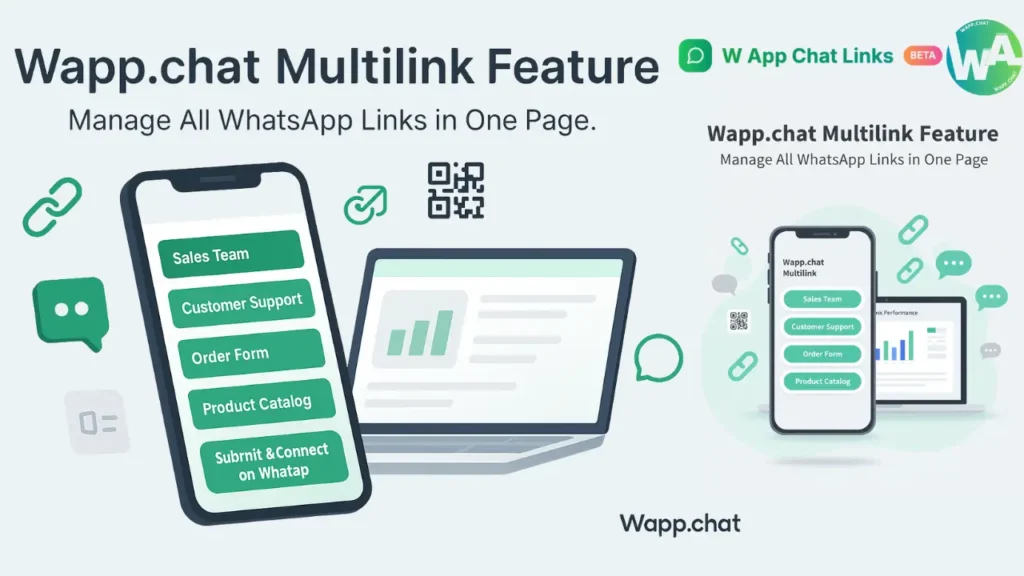
In today's world, WhatsApp has become more than a messaging app. For many small businesses, it's the main place where sales, support, and customer communication happen.
The problem starts when you manage several numbers or departments. You end up sending different links every time a customer wants to reach the right person. That's where the WaLinks Multilink feature changes everything.
The idea is simple but powerful. You can collect all your WhatsApp links, forms, and catalog links in one single smart page. It becomes your all-in-one landing page for customer chats. Instead of juggling ten WhatsApp links, you generate one clean WhatsApp Multilink that organizes them all.
What Is a Multilink Page #
A Multilink Page in WaLinks is like a mini landing page that displays multiple WhatsApp options together. Each button on that page can open a different type of link such as:
- Custom WhatsApp chat links
- Form links for feedback or orders
- Multi-agent links for departments like sales or support
- WhatsApp catalog links for products
It's your own micro-site for WhatsApp communication. The link looks like: https://wapp.chat/ml/yourlinkname
That short link can be placed in your bio, website, QR posters, or messages.
Why Businesses Should Use Multilink Pages #
The point is not just to look organized. It actually saves time, reduces confusion, and improves conversions. Here's why:
1. One Link for All Contacts #
You no longer send five numbers to one customer. Instead, you share one Multilink page, and they can pick who to chat with. This helps new customers reach the right person faster.
2. Perfect for Teams and Departments #
If you run a store or a service company with teams like billing, support, or delivery, you can connect each one through a separate button on the same page.
3. Saves Time and Reduces Chat Errors #
You don't waste time sending different links every day. The page stays the same even if you update numbers behind the scenes. Customers never notice the change.
4. Better Marketing Tracking #
Each button can still carry UTM tags and click analytics. You can see how many people opened your link, which contact they clicked, and from which country or device they came.
5. Looks Professional #
It gives your business a clean and branded look. When someone opens your Multilink page, it feels like a custom landing page, not a random wa.me link.
Real Use Cases of Multilink Pages #
Let's look at a few real examples where this feature fits perfectly:
- Restaurants can share one link that includes "Order Now," "Book a Table," and "Give Feedback."
- Online stores can add "Track Order," "Product Catalog," and "Customer Care."
- Marketing agencies can link "Sales Team," "Client Support," and "Join Our Partner Program."
- Freelancers or creators can include "Hire Me," "Send Project Brief," and "Join My Group."
You can use the same link across social media bios, flyers, email signatures, and even in Google Ads.
How to Create a Multilink Page in WaLinks #
Now let's go through the process step by step. You can try this right from your WaLinks dashboard.
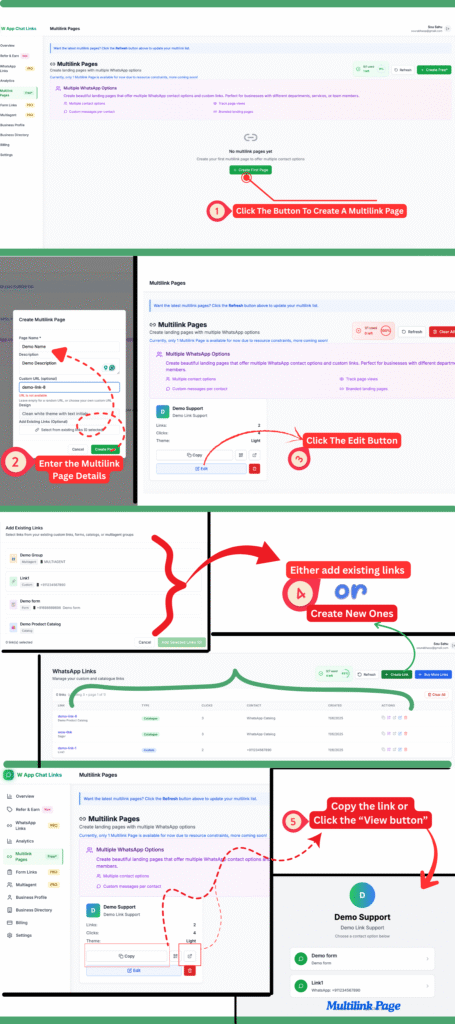
Step 1: Create Your First Multilink Page #
Go to the Multilink Pages section in the left sidebar. You'll see an option saying No Multilink pages yet. Click the green button that says Create First Page to begin.
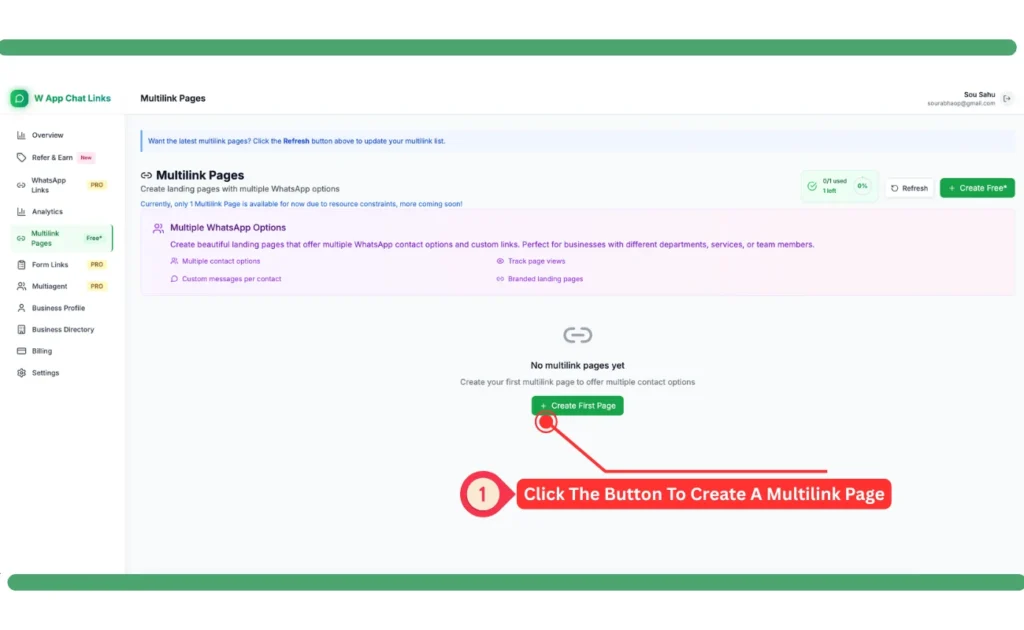
Step 2: Enter the Page Details #
A form opens with a few simple fields.
- Add a Page Name like Demo Support.
- Write a Description so visitors know what this page is about.
- Type your preferred Custom URL such as demo-link-11.
The system checks if the name is available.
- If not, you can slightly change it.
Pick a Theme for the design.
Optionally, add links that you already created before.
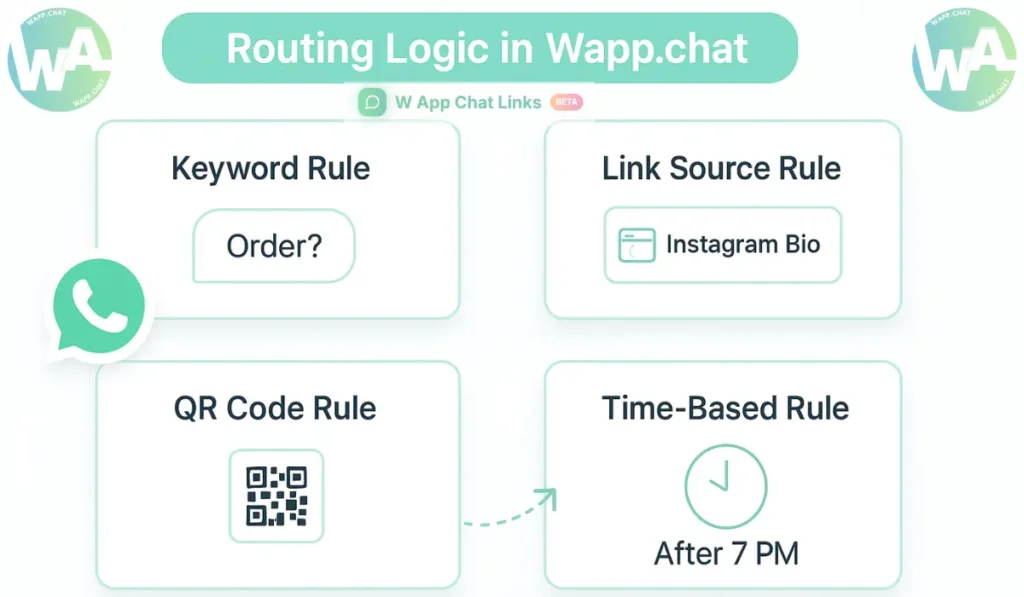
Click Create Page once done.
Step 3: Edit the Multilink Page #
After creation, your new page will appear in the list. You can see the total number of links, clicks, and theme. Click Edit to add more links or modify details later.
Step 4: Add Existing or New Links #
Now you can either select existing WhatsApp links or create new ones directly.
- Existing links may include Form Links, Catalog Links, or Agent Links.
- You can also create new ones if needed.After selecting, click Add Selected Links to connect them to your page.
Step 5: Copy or View the Live Page #
Once your Multilink page is ready, you'll see options to Copy the link or View it live. When you open it, you'll find a clean landing page showing all the buttons you added.
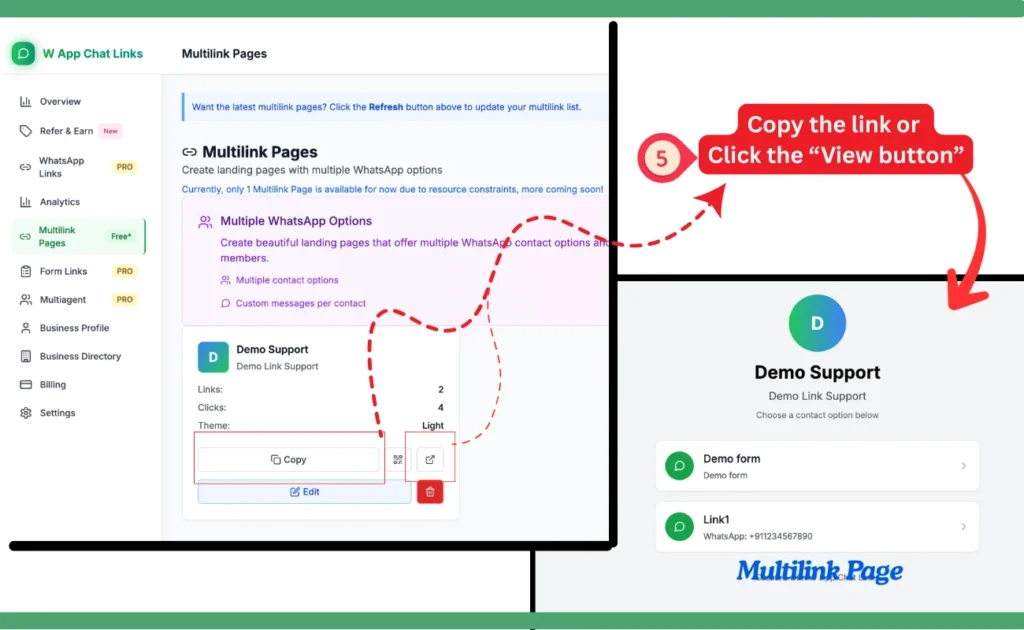
Each button opens the right chat or form instantly.
How It Saves Cost and Time #
WaLinks Multilink is not only about looks. It directly cuts your marketing cost and time.
- You no longer need separate pages or third-party tools like Linktree or Bitly for WhatsApp campaigns.
- You save time by sending one link instead of creating new ones for every event or campaign.
- Analytics are already built in, so you don't need another tracking system.
- Updates are instant. When you change one contact, all places where you shared the Multilink remain valid.
That's why many small businesses, creators, and agencies use this feature as their daily tool for WhatsApp marketing.
Tips for Better Use #
Here are a few small tricks that make your Multilink page even better:
- Add your logo and brand name in the description.
- Keep the button labels short and clear.
- Use the analytics tab to track which button gets more clicks.
- Print the QR code version for your shop or event banner.
- Share the same link on Instagram bio, Facebook page, and business cards.
Why It's a Game Changer #
The power of the Multilink feature is in its simplicity. You can turn WhatsApp into a mini CRM without coding. Businesses that use this feature manage more chats, waste less time switching numbers, and build a smoother customer journey.
Every click goes to the right person, every chat is tracked, and every campaign stays organized. It keeps your brand communication fast, professional, and easy to manage.
Checklist #
- Open WaLinks dashboard
- Go to Multilink Pages
- Click Create First Page
- Enter name, description, and URL
- Add existing or new links
- Copy and share your Multilink page
Final thought #
When you run a business on WhatsApp, organization means everything. The Multilink feature brings order to your contacts, connects all departments in one page, and gives your customers a clean path to reach you.
That one smart link can save hours every week and make your WhatsApp look like a professional communication hub.
Written by
Sourabha Kumar Sahu
Founder of WApp Chat, building tools that help businesses grow with WhatsApp.